Eagle AI — Field InspectionEagle AI — 現場巡檢
An installable, local-first field-observation app. Walk a site → capture observations (photo + voice/text + annotation) → review → assemble a report → issue → PDF. Part of Eagle AI's thesis: turn field evidence into payment confidence.一款可安裝、本地優先的現場觀察 App。巡檢工地 → 擷取觀察項(照片+語音/文字+標註)→ 審查 → 彙整報告 → 出具 → PDF。這是 Eagle AI 核心主張的一環:把現場證據轉化為付款信心。
This document describes the current build (a working PWA, deployed) and, where relevant, what the real product will do. It covers the two editions (MVP / Full), the end-to-end user flows, the platform constraints of shipping as a PWA, and the roadmap seams where a real backend plugs in.本文件說明目前的版本(一個已部署、可運作的 PWA),並在相關處說明正式產品將會如何運作。內容涵蓋兩個版本(MVP/完整版)、端到端的使用流程、以 PWA 形式上線的平台限制,以及未來正式後端接入的介面點。
The whole flow at a glance整體流程一覽
flowchart LR
  A["Set up project
location · drawings"]:::full --> B["Start report
the walk"]
  B --> C["Capture observation
photo · voice/text · markup"]
  C --> C
  C --> D["Review / assemble
pick observations"]
  D --> E{"Preview
+ Confirm"}
  E -->|Confirm| F["Issued report
PDF + public link"]
  F --> G["Send
recipients"]:::full
  C -.not issued.-> H["Observations
Not-issued tab"]:::full
  H -.aging.-> D
  classDef full fill:#e6f1eb,stroke:#1a7050,color:#14513a;
Two surfaces, one system兩個介面,同一套系統
Eagle AI is delivered on two platform surfaces — web and app — over the same system. This document is the app (Field Inspection PWA). It is a reference implementation of the field-capture half; the payment-verification half lives on the web surface.Eagle AI 以兩個平台介面交付 —— 網頁與 App —— 建立在同一套系統之上。本文件說明的是 App(現場巡檢 PWA)。它是「現場擷取」這一半的參考實作;「付款驗證」那一半則在網頁介面上。
01 Editions — MVP vs Full版本 — MVP 與完整版
One codebase produces two builds via a build-time flag (VITE_EDITION) plus a per-feature registry (src/edition.ts), deployed as two Cloudflare Workers. No git fork — a fork would recreate the design drift we exist to avoid.同一套程式碼透過建置期旗標(VITE_EDITION)加上一份逐功能的註冊表(src/edition.ts)產生兩個建置版本,部署為兩個 Cloudflare Worker。不做 git 分叉 —— 分叉只會重現我們正是要避免的設計偏移。
| MVP(對外) (external) | Full(對內) (internal) | |
|---|---|---|
| Worker | field-report | field-report-full |
| URL | field-report.jaredsong.workers.dev | field-report-full.jaredsong.workers.dev |
| Audience對象 | Testers / clients測試者/客戶 | Our team內部團隊 |
| Deploy部署 | Manual手動 — npm run deploy | Auto自動 on push to推送至 main |
| Features功能 | Confirmed only僅已確認的功能 | Everything we're building所有開發中的功能 |
git push updates only Full.單純的 git push 只會更新完整版。 MVP must be deployed deliberately with npm run deploy. Same core flow and the same API in both — they share one KV + R2; data is isolated per account (your email is the sync key), not per edition.MVP 必須以 npm run deploy 刻意部署。兩個版本的核心流程相同、API 也相同 —— 共用同一組 KV + R2;資料以帳號為單位隔離(你的 email 就是同步金鑰),而非以版本隔離。How a feature is promoted功能如何升級到對外版
The differences are feature flags. 'full' = internal-only; flip a line to 'mvp' to promote a feature to external, then deploy MVP. Because it's a build-time constant, full-only branches tree-shake out of the MVP bundle — not hidden, absent.差異都是功能旗標。'full'=僅限內部;把某一行改成 'mvp' 即可把該功能升級到對外版,再部署 MVP。由於它是建置期常數,full 專屬的分支會從 MVP 打包中被搖樹移除(tree-shake) —— 不是隱藏,而是根本不存在。
flowchart LR
  R["src/edition.ts
FEATURES registry"] -->|"line = 'mvp'"| M["MVP bundle
feature present"]
  R -->|"line = 'full'"| X["MVP bundle
feature tree-shaken OUT"]
  R -->|any| FUL["Full bundle
everything present"]
Feature registry (gated features only)功能註冊表(僅列受控功能)
Core screens — Home, Reports, Walk/capture, report draft/issue/PDF, Attendance, Preferences, voice — are always on and not gated.核心畫面 —— 首頁、報告、巡檢/擷取、報告草稿/出具/PDF、出席、偏好設定、語音 —— 一律開啟,不受旗標控制。
| Feature功能 | Edition版本 | What it is說明 |
|---|---|---|
emailLogin | mvp | Email sign-in + onboarding + cloud sync (in both)Email 登入+首次引導+雲端同步(兩版皆有) |
photos | full | “Observations” gallery (bottom-nav tab)「觀察項」相簿(底部導覽分頁) |
profileTab | full | Worker-profile tab (MVP uses gear → Preferences)個人檔案分頁(MVP 改用齒輪 → 偏好設定) |
projectCreate | full | Create / set up a project建立/設定專案 |
floorplanSetup | full | Upload drawing sheets, assign to floors上傳圖說、指派到樓層 |
drawings | full | Drawing-sheet viewer (by-floor / all-sheets)圖說檢視器(依樓層/全部圖說) |
pinDrop | full | Floor-plan location pin per observation每個觀察項在平面圖上的圖釘定位 |
prevReportLink | full | Link an observation to a prior one把觀察項連結到先前的觀察項 |
referenceDetail | full | Link an observation to a drawing-set sheet把觀察項連結到某張圖說 |
recordLock | full | Passcode + Face ID gate (revisions · deletions · setup · personal info)密碼+Face ID 保護(修訂 · 刪除 · 設定 · 個人資料) |
reportTrades | full | Editable “Trades observed today” (MVP derives from observations)可編輯的「今日現場工種」(MVP 由觀察項自動推導) |
reportDistribution | full | Issue → send sheet + Sent “Delivered to” (MVP issues straight to Sent)出具 → 派送表單+「已送達對象」(MVP 出具後直接進入已寄送) |
projectCreate · floorplanSetup · specMap are declared in the registry but not yet wired as direct gates — those flows are full-only in practice because their only entry points (the Home Drawings / floor-plan cards and the Profile tab) are gated by drawings / profileTab. Notifications is not gated — the Home bell + full-page centre ship in both editions.projectCreate · floorplanSetup · specMap雖在註冊表中宣告,但尚未接成直接的旗標;這些流程實務上仍是完整版專屬,因為唯一的入口(首頁的圖說/平面圖卡片與個人檔案分頁)本身就被 drawings / profileTab 控制。通知未受旗標控制 —— 首頁鈴鐺+整頁通知中心在兩個版本皆會出貨。
What MVP has vs what Full addsMVP 有什麼、完整版又多了什麼
The flags above cascade — one gated tab removes a whole surface. In plain terms, MVP is the capture → assemble → issue → PDF spine on a single project; Full adds the gallery, the worker profile, project setup, the location/link richness, distribution, and the security gate.上面的旗標會層層擴散 —— 一個被關掉的分頁就抽掉一整個介面。簡單說,MVP 是單一專案上的擷取 → 彙整 → 出具 → PDF主幹;完整版再加上相簿、個人檔案、專案設定、位置/連結的豐富功能、派送,以及安全鎖。
| Area面向 | MVP (external)(對外) | Full (internal) adds(對內)新增 |
|---|---|---|
| Bottom-nav tabs底部導覽分頁 | Home · Reports首頁 · 報告 | + Photos照片 · Profile個人檔案 |
| Projects專案 | One prebuilt starter project (renamed in onboarding step 2)一個預建的起始專案(在首次引導第二步命名) | Create / configure projects建立/設定專案 — letterhead, report prefix, floor + elevation structure, per-floor drawings信箋抬頭、報告前綴、樓層+立面結構、各樓層圖說 |
| Capture (the walk)擷取(巡檢) | Camera · multi-photo · voice · text · sketch · markup · pause/resume · QR zone相機 · 多張照片 · 語音 · 文字 · 手繪 · 標註 · 暫停/續行 · QR 區域 | — (same)— (相同) |
| Observation location觀察項位置 | Zone picker (building → floor → area)區域選擇(棟別 → 樓層 → 區域) | + pin-drop圖釘定位 on the floor plan於平面圖上 · elevation box立面框選 |
| Observation links觀察項連結 | — | Reference detail參考圖說 (drawing sheet + box)(圖說+框選) · Previous-observation link前次觀察項連結 |
| Photos gallery照片相簿 | — | Observations tab觀察項分頁 — grid · search · filter sheet · lightbox · Issued / Not-issued格狀 · 搜尋 · 篩選表單 · 燈箱 · 已出具/尚未出具 |
| Drawings圖說 | — | Home首頁 floor-plan cards平面圖卡片 + Drawings viewer圖說檢視器 (by-floor / all sheets)(依樓層/全部圖說) |
| Assemble彙整 | Pick observations · attendance · pre-issue check · preview; trades auto-derived (read-only)挑選觀察項 · 出席 · 出具前檢查 · 預覽;工種自動推導(唯讀) | + editable “Trades observed today”可編輯的「今日現場工種」 |
| Issue & deliver出具與派送 | Issue → Sent出具 → 已寄送 | + recipient distribution收件派送 send sheet派送表單 · Sent已寄送顯示 “Delivered to”「已送達對象」 |
| Server-rendered A4 · Save PDF (share sheet / download)伺服器產生的 A4 · 儲存 PDF(分享表單/下載) | — (same)— (相同) | |
| Reports & revisions報告與修訂 | Drafts · issued · revisions (sorted by issue date)草稿 · 已出具 · 修訂(依出具日期排序) | — (same)— (相同) |
| Notifications通知 | Bell + full-page centre鈴鐺+整頁通知中心 | — (same; ungated)— (相同;未受旗標控制) |
| Worker profile個人檔案 | — (settings via gear → Preferences; account fields there)— (設定經齒輪 → 偏好設定;帳號欄位放在那裡) | Profile tab個人檔案分頁 · practices · live stats ·事務所 · 即時統計 · Field Record現場紀錄 (PDF + public page + QR poster)(PDF+公開頁面+QR 海報) |
| Security安全 | — | Record lock紀錄鎖 — passcode + Face ID gate on revisions · deletions · setup · personal info密碼+Face ID,保護修訂 · 刪除 · 設定 · 個人資料 |
| Sync · photos · auth同步 · 照片 · 認證 | Email-key sync · content-addressed photos · pull-to-refresh · email-code login · Face ID re-entryEmail 金鑰同步 · 內容定址照片 · 下拉重新整理 · Email 驗證碼登入 · Face ID 再登入 | — (same)— (相同) |
02 Site setup工地設定 Full
Before a walk, a project carries the context the report reads. Setup lives under Profile → project (Full edition; MVP works against a seeded/simple project).巡檢之前,專案承載了報告所引用的背景資料。設定位於個人檔案 → 專案(完整版;MVP 則對著一個預置/簡化的專案運作)。
- Project — created under one practice (its letterhead). Address, client, code, drawing set, spec, distribution list. (The MVP starter project gets its real name/address from onboarding step 2.)專案 —— 建立於某一間事務所之下(使用其信箋抬頭)。含地址、業主、Code、圖說集、規範、派送清單。(MVP 起始專案的真實名稱/地址來自首次引導第二步。)
- Location — buildings → floors → zones/areas. This tree is the single source for where an observation is and for the zone QR codes.位置 —— 棟別 → 樓層 → 區域。這棵樹是「觀察項在哪裡」以及區域 QR 碼的唯一來源。
- Drawings — three grouped kinds in All drawings: Floor plans (one per floor) · Elevations (per-building N/S/E/W faces) · Sheets (the drawing-set register). Every upload gets a crop + rotate preview first; PDF uploads render as images with a multi-page page picker (pick one).圖說 —— 在所有圖說中分成三類:平面圖(每樓一張)· 立面圖(每棟 東/南/西/北 各面)· 圖說(圖說集清單)。每次上傳都先經裁切+旋轉預覽;上傳 PDF 會轉成圖片並提供多頁選頁器(選其中一頁)。
- Zone QR codes — auto-generated per floor/zone from Location. Print all or one as a label sheet or A4 poster; “Generated with Eagle AI” on every QR PDF. Scanning a label deep-links (
#loc=…) and stages that zone for 15 minutes.區域 QR 碼 —— 依「位置」逐樓層/逐區域自動產生。可整批或單張印成標籤頁或 A4 海報;每份 QR PDF 都標示「Generated with Eagle AI」。掃描標籤會深層連結(#loc=…)並將該區域暫存 15 分鐘。
03 The walk — capture巡檢 — 擷取
The core loop. Start report opens a walk; each observation is a photo (or several) plus a voice or text note and optional annotation.核心循環。開始報告會開啟一次巡檢;每個觀察項是一張(或數張)照片,加上語音或文字備註,以及可選的標註。
flowchart TB
  S([Start report]) --> W["Walk in progress
timer running, parked as a draft"]
  W --> Cap[Capture observation]
  Cap --> P["Photos
camera / album"]
  Cap --> N["Note
voice → Whisper, or text"]
  Cap --> M["Markup
annotate the photo"]:::full
  Cap --> L["Location
zone / pin / elevation box"]:::full
  P & N --> W
  W --> R([Review / assemble])
  classDef full fill:#e6f1eb,stroke:#1a7050,color:#14513a;
- Voice notes — recorded audio → Workers AI Whisper → text (Mandarin transcribed to Traditional Chinese via OpenCC). A manual text path is always available.語音備註 —— 錄音 → Workers AI Whisper → 文字(國語經 OpenCC 轉成繁體中文)。手動輸入文字的路徑一律保留。
- Staged zone (QR) — a scanned label docks a green chip on Start report; the first capture pre-fills that location.暫存區域(QR) —— 掃描標籤後,會在「開始報告」上停靠一個綠色標籤;第一次擷取會自動帶入該位置。
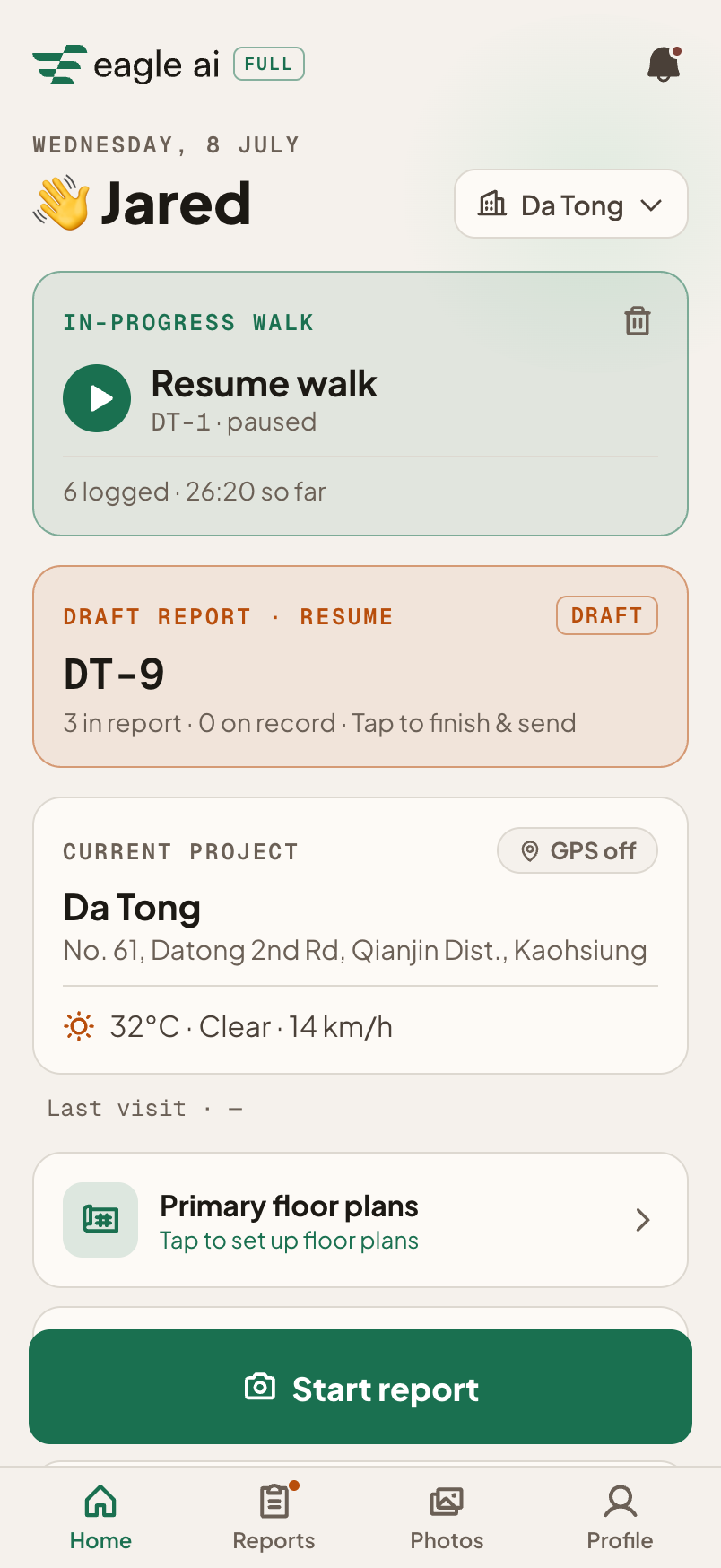
- Resume — a parked walk shows a resume card on Home; the walk-in-progress is never silently dropped.續行 —— 暫存的巡檢會在首頁顯示續行卡片;進行中的巡檢絕不會被默默丟棄。
- Pull-to-refresh — every content screen: drag down → sync, with the Eagle-wing spinner + a “Pull to refresh” / “Reloading…” label.下拉重新整理 —— 每個內容畫面皆有:下拉 → 同步,搭配 Eagle 之翼載入動畫+「下拉以重新整理」/「重新載入中…」文字。
04 Observations觀察項 Full
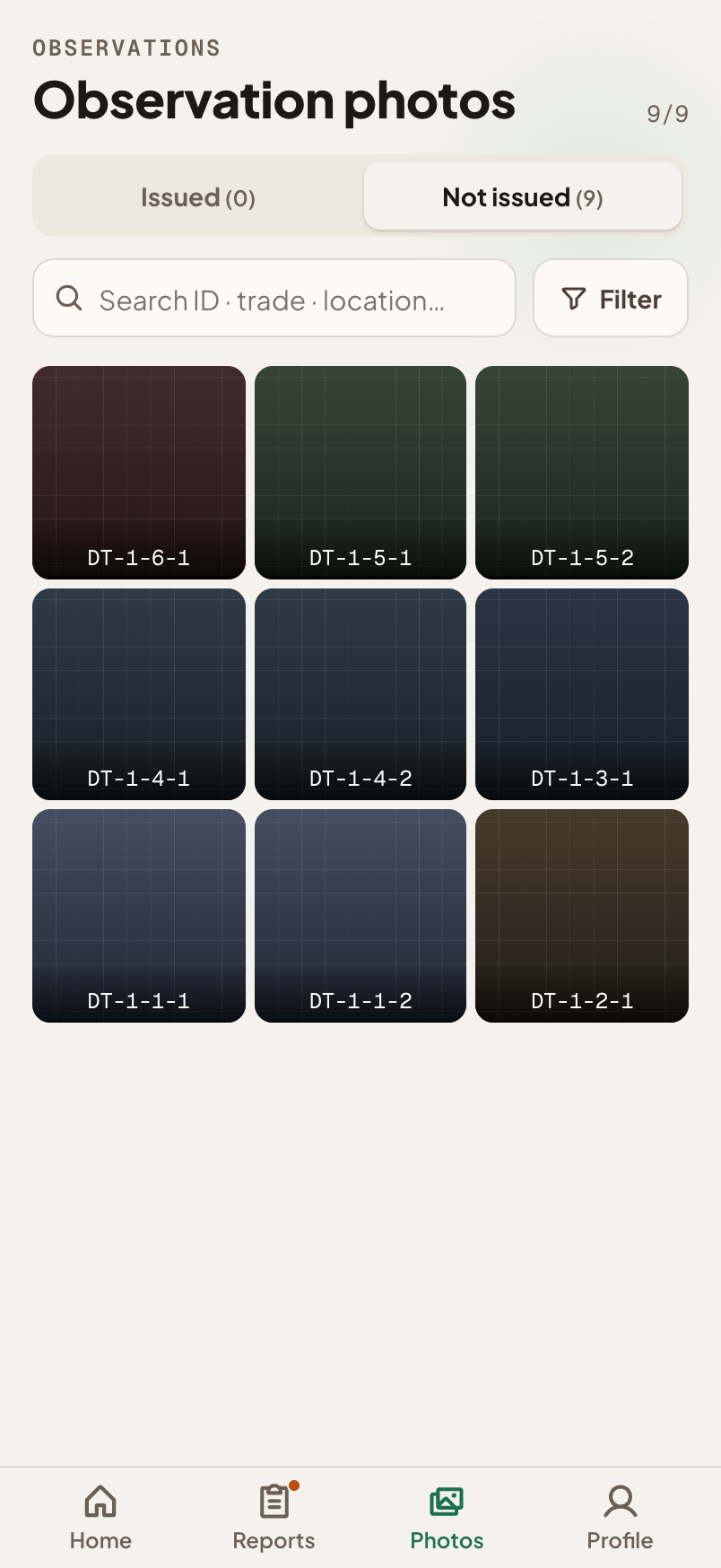
The Photos tab is the gallery of everything captured, filterable by trade. Its most important job is the Not issued classification — the one shared definition (src/domain/notIssued.ts) so the tab and the Home pool card can never disagree.照片分頁是所有已擷取內容的相簿,可依工種篩選。它最重要的任務是尚未出具的分類 —— 由單一共用定義(src/domain/notIssued.ts)決定,讓分頁與首頁的待處理卡片永遠一致。
| State狀態 | Meaning意義 |
|---|---|
| issued | Its report is issued and actually included it.其所屬報告已出具,且確實包含了它。 |
| draft | An open draft includes it (shown on Home by the draft card).某份開啟中的草稿包含了它(在首頁以草稿卡片顯示)。 |
| not issued | Everything else on record — the loose pool (streams into the next walk) and claimed-but-unchecked (only a revision brings it back).其餘所有已記錄的項目 —— 未歸屬的待處理池(會流入下一次巡檢)以及已納入但未勾選的(只有修訂才會把它帶回來)。 |
05 Assemble → issue彙整 → 出具
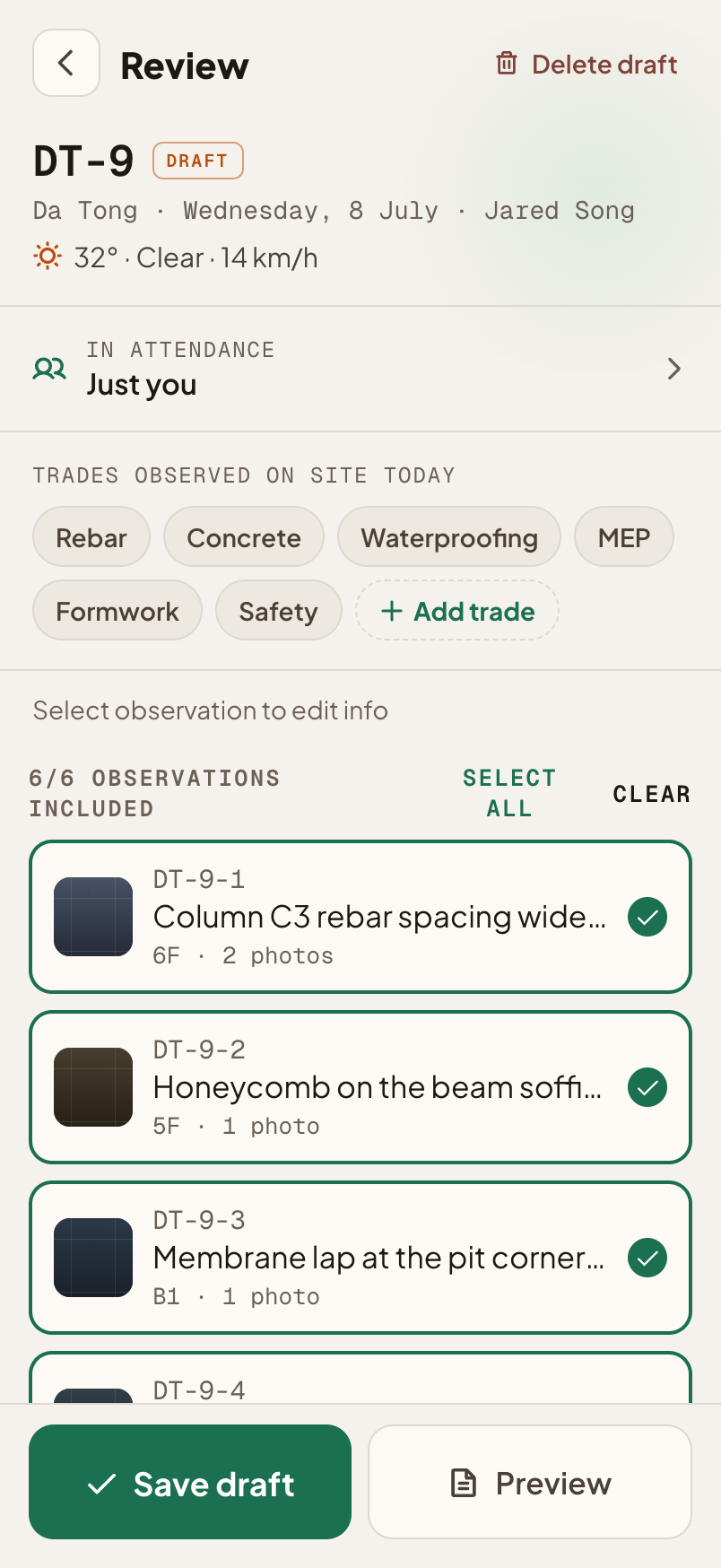
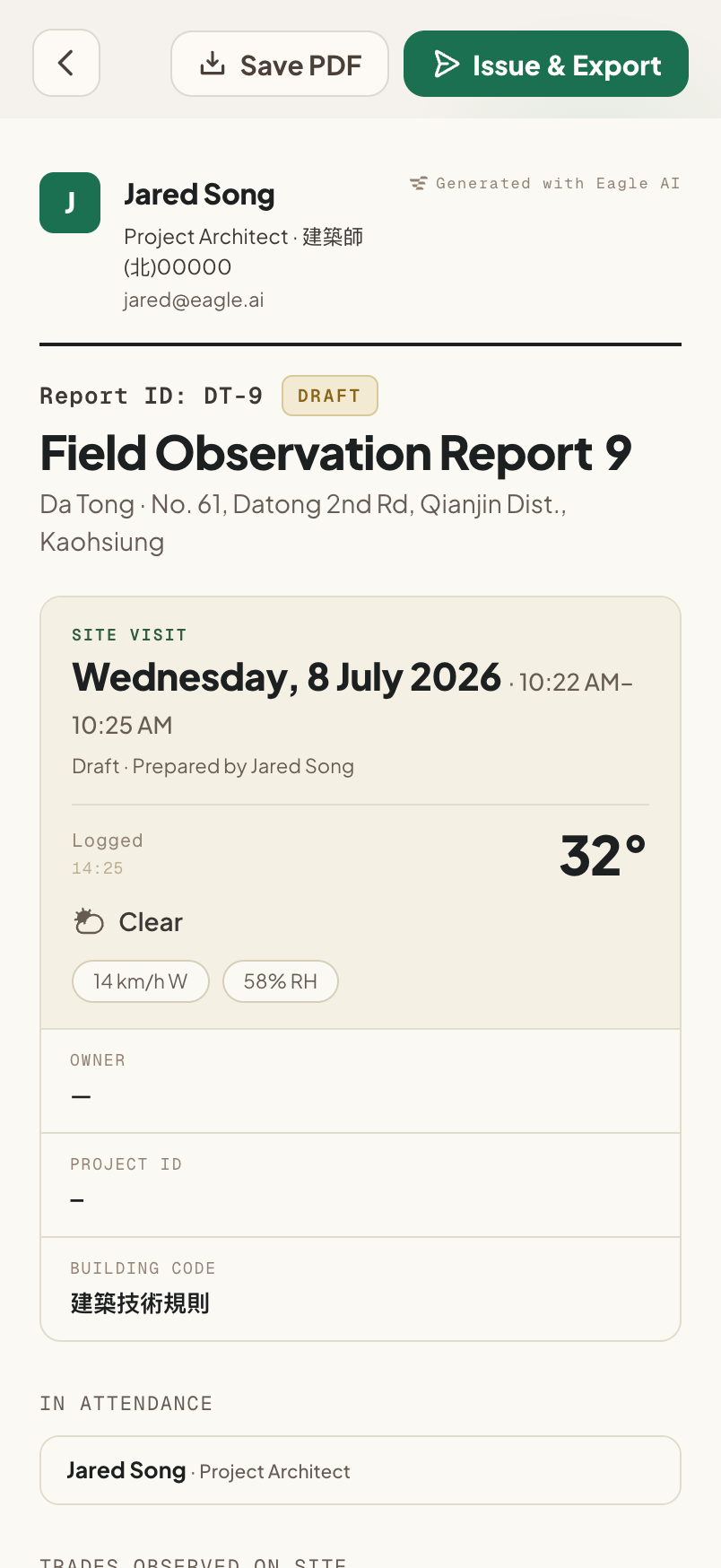
The report lifecycle. Assemble picks which observations go in; a Preview step precedes issuing; the report is not issued until you Confirm.報告的生命週期。彙整時挑選要納入哪些觀察項;出具前有一道預覽步驟;報告在你確認之前都尚未出具。
flowchart LR
  A["Review / assemble
pick observations · trades"] --> B[Preview]
  B -->|completeness check| C{"Send sheet
= Confirm step"}
  C -->|X / overlay| B
  C -->|Confirm / Send| D[[Officially issued]]
  D --> E["Sent
Delivered-to card"]:::full
  D --> F[(PDF + public link)]
  classDef full fill:#e6f1eb,stroke:#1a7050,color:#14513a;
- Report codes — e.g.
DT-14(project prefix + sequence); the draft carries the code, not the project name.報告編號 —— 例如DT-14(專案前綴+序號);草稿帶著編號,而非專案名稱。 - Recipient distribution full — the send sheet picks recipients (real Copy-link + channel tiles); Sent shows a “Delivered to” card. MVP issues straight to Sent.收件派送 full —— 派送表單挑選收件人(實際可用的複製連結+管道方塊);「已寄送」會顯示「已送達對象」卡片。MVP 出具後直接進入已寄送。
- PDF — server-rendered A4; preview == PDF == the design mock. Report map = the pinned floor plan or boxed elevation, only when marked.PDF —— 伺服器產生的 A4;預覽 == PDF == 設計稿。報告地圖=已釘選的平面圖或框選的立面圖,僅在有標記時顯示。
- Optional links full — reference a drawing sheet, or link a previous observation (“Previously noted in …”).選用連結 full —— 參照某張圖說,或連結先前的觀察項(「先前已記錄於…」)。
06 Notifications通知
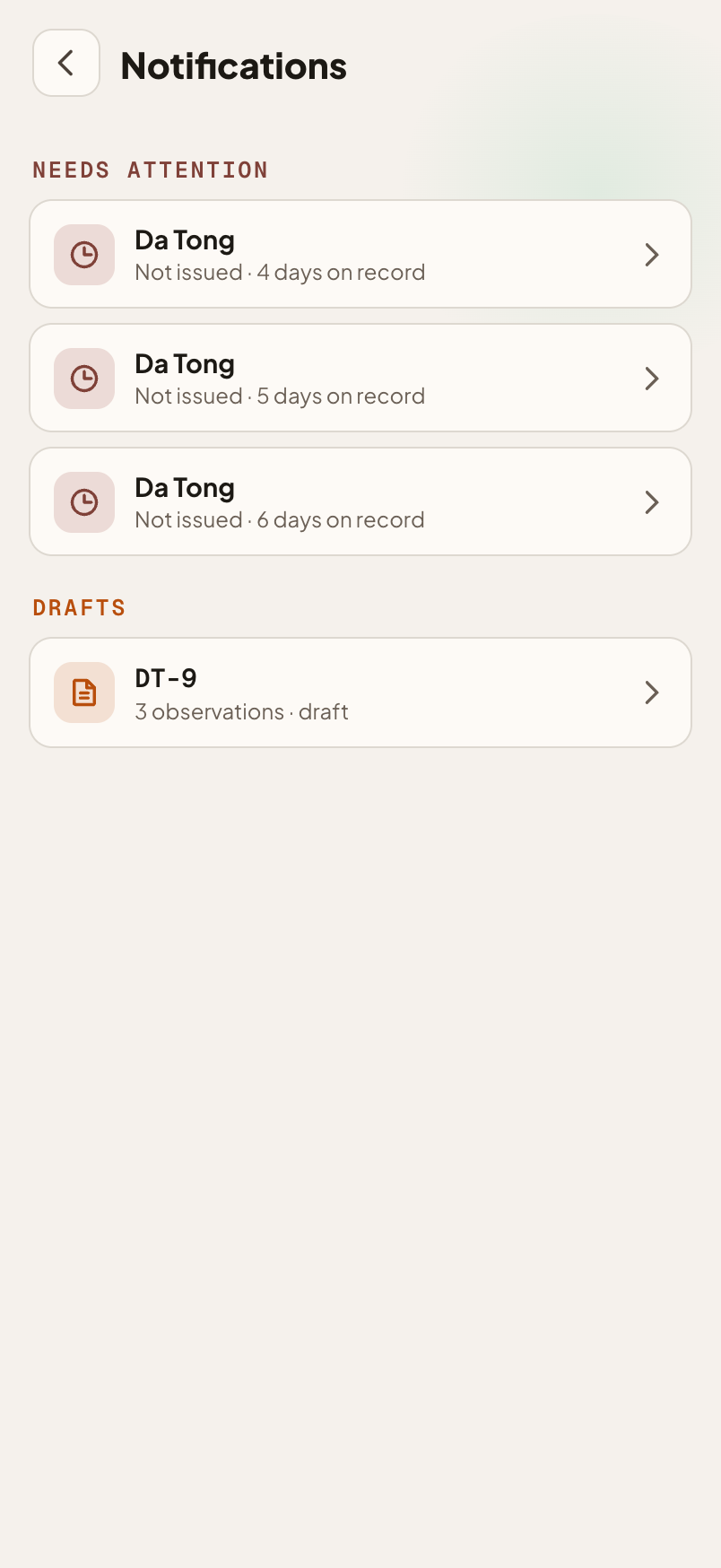
The Home bell opens a full-page notification centre — a grouped worklist of actionable exceptions. The bell is filled with a red dot when there's anything to act on, outline when clear. One shared source (useNotifications) drives both the badge and the page.首頁的鈴鐺會開啟整頁的通知中心 —— 一份分組的待辦清單,列出需要處理的例外。有事要處理時鈴鐺呈實心並帶紅點,都清空時則為外框。單一共用來源(useNotifications)同時驅動角標與頁面。
| Group分組 | What surfaces浮現的內容 | Tap →點擊 → |
|---|---|---|
| Needs attention需要注意 | Aging un-issued observations (> 3 days on record, in no issued/draft report)逾期未出具的觀察項(記錄超過 3 天,且不在任何已出具/草稿報告中) | Photos (Not issued)照片(尚未出具) |
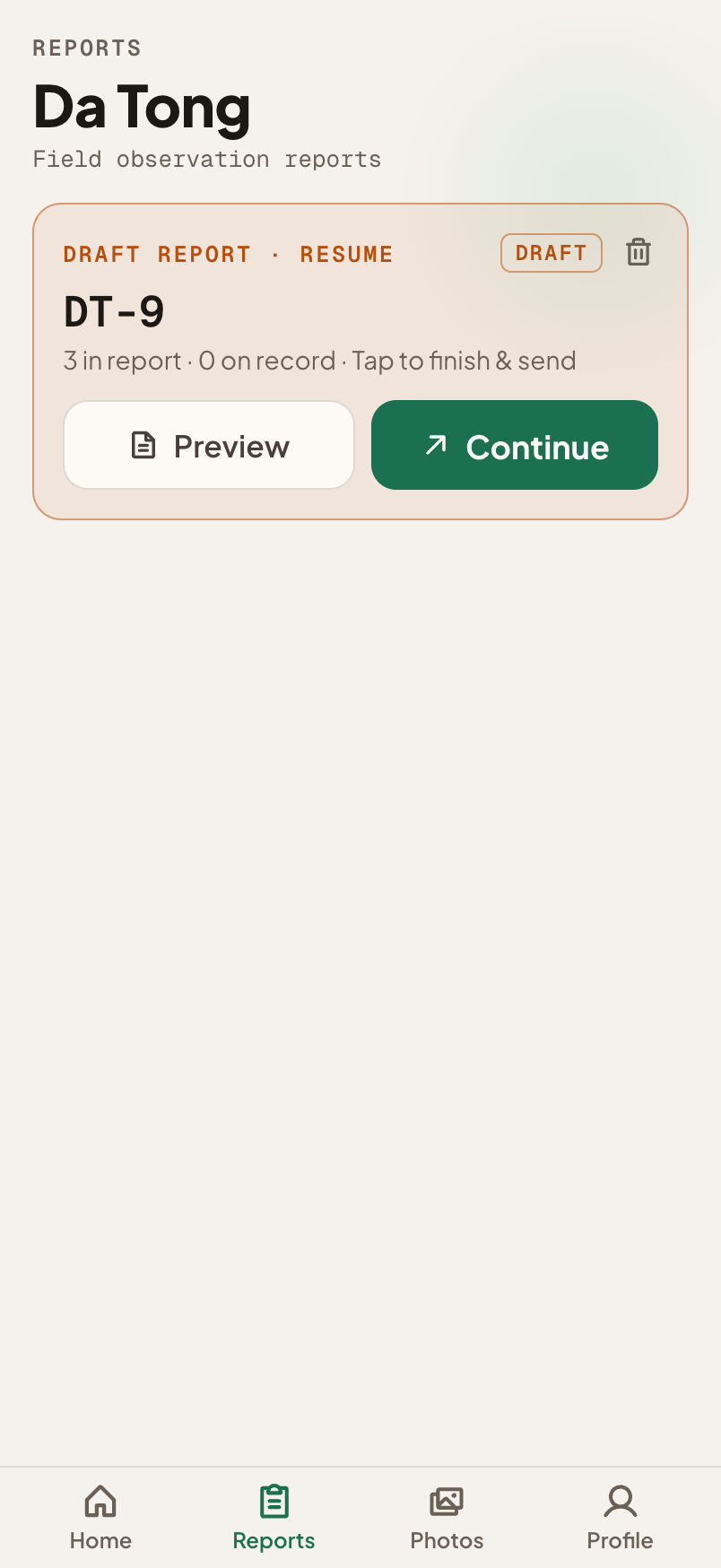
| Drafts草稿 | Open draft reports開啟中的草稿報告 | Reopen the draft重新開啟草稿 |
07 Profile & Field Record個人檔案與現場紀錄 Full
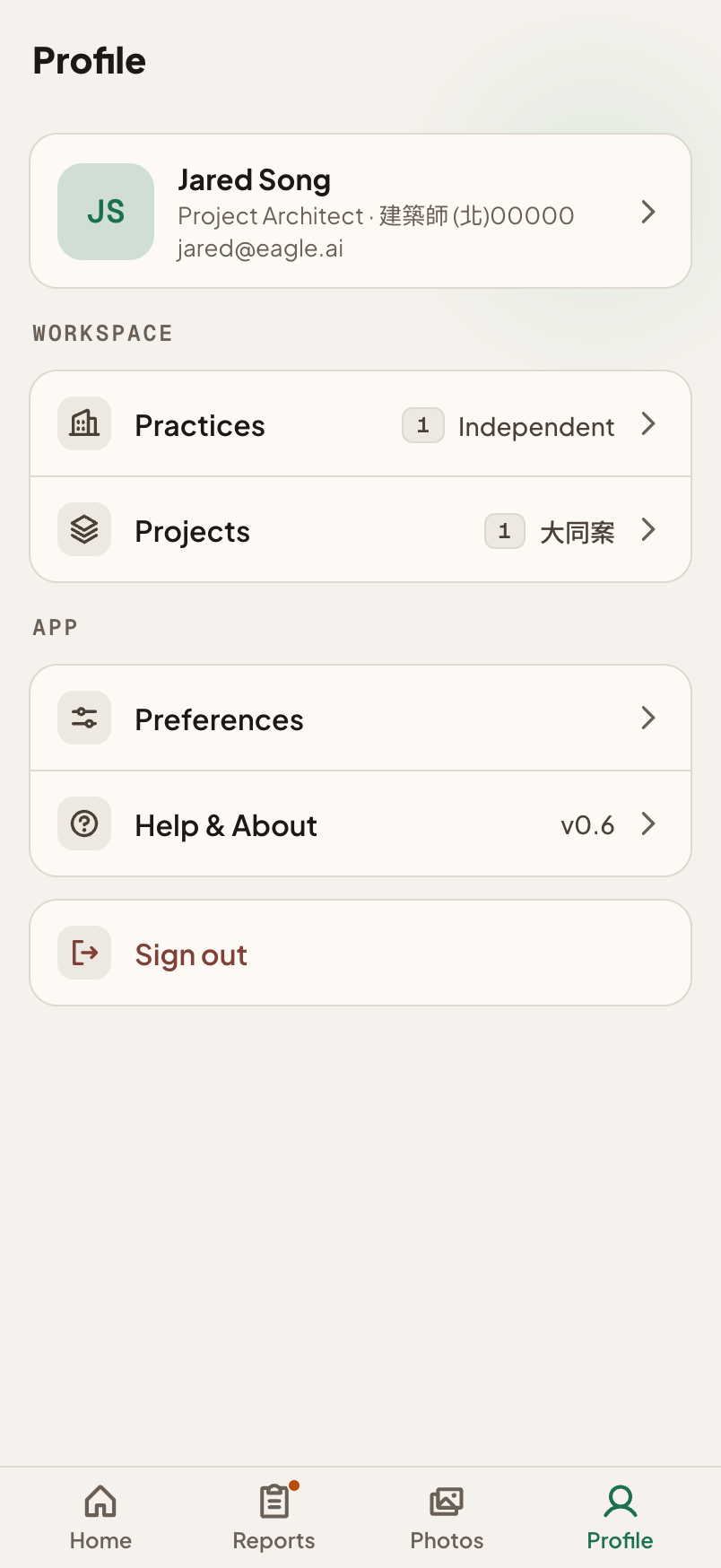
The worker profile is a person's identity across their practices. It exports a Field Record — a portable PDF + public page of their recorded activity.個人檔案是一個人橫跨其各事務所的身分。它可匯出一份現場紀錄 —— 一份可攜的 PDF+一個公開頁面,呈現其被記錄下來的活動。
- Identity model — a worker (the person) works under one or more practices; an always-present “Independent” practice is the default letterhead.身分模型 —— 一位工作者(人)隸屬於一或多間事務所;一個永遠存在的「獨立」事務所即為預設信箋抬頭。
- Cumulative stat graphs — projects · reports · on-site hours · observations, bucketed by week/month/year.累計統計圖 —— 專案 · 報告 · 現場時數 · 觀察項,依週/月/年分組。
- Field Record export — a PDF + a published public page (
/p/<token>). The masthead is the practice letterhead; the stats-hero avatar is the account photo. Span reads first activity → export date.現場紀錄匯出 —— 一份 PDF+一個已發布的公開頁面(/p/<token>)。抬頭是事務所信箋抬頭;統計首圖頭像是帳號照片。時間跨度為首次活動 → 匯出日期。 - Branded QR poster — “Save QR” makes a print-ready card: the Eagle logo knocked into the QR centre (error-correction H so it still scans), name, and a “Generated with Eagle AI” footer. The QR carries the public link.品牌 QR 海報 —— 「儲存 QR」會產生可列印的卡片:QR 中央嵌入 Eagle 標誌(採用 H 級容錯,仍可掃描)、姓名,以及「Generated with Eagle AI」頁尾。QR 帶著公開連結。
08 PWA constraintsPWA 限制
Shipping as an installable PWA (not a native app) shapes real product decisions. What follows is what the platform allows today and how the app works within it.以可安裝的 PWA(而非原生 App)出貨,會實際影響產品決策。以下是平台目前允許的範圍,以及 App 如何在其中運作。
| Area面向 | Constraint → how the app handles it限制 → App 如何因應 |
|---|---|
| Offline離線 | Local-first. All work persists in IndexedDB (Dexie) and functions with no network. The service worker (vite-plugin-pwa) uses NetworkFirst, so an online open always pulls the latest bundle.本地優先。所有作業都存在 IndexedDB(Dexie),無網路也能運作。Service worker(vite-plugin-pwa)採 NetworkFirst,因此有網路開啟時一律抓取最新的打包。 |
| Refresh重新整理 | No pull-to-refresh from the OS in standalone mode → the app implements its own pull-to-refresh (drag from top → sync) on every screen.獨立模式下作業系統不提供下拉重新整理 → App 在每個畫面自行實作自己的下拉重新整理(從頂端下拉 → 同步)。 |
| Push notifications推播通知 | Unreliable for installed PWAs (esp. iOS) → notifications are an in-app bell, computed from local data, not OS push.已安裝的 PWA 推播不可靠(尤其 iOS)→ 通知改為 App 內鈴鐺,由本地資料算出,而非作業系統推播。 |
| SSO / OAuth | The OAuth redirect can't complete inside an installed PWA → SSO buttons are placeholders (“Soon”); login is passwordless email code. Revisit with a native wrapper.OAuth 導轉無法在已安裝的 PWA 內完成 → SSO 按鈕為佔位(「即將推出」);登入採無密碼 email 驗證碼。日後以原生外殼再處理。 |
| Account deletion帳號刪除 | Apple 5.1.1(v) requires in-app deletion once there's account creation → deletion UI exists but the action is disconnected in this preview build; wired for the real build.Apple 5.1.1(v) 規定一旦有帳號建立就須提供 App 內刪除 → 刪除介面已存在,但此預覽版尚未接上動作;正式版會接上。 |
| Lock / privacy鎖定/隱私 | recordLock full — a passcode + Face ID gate for revisions, deletions, project setup, and personal info.以密碼+Face ID 保護修訂、刪除、專案設定與個人資料。 |
| Camera / photos相機/照片 | Standard web camera/file input; images are downscaled locally before upload and stored by content hash.標準的網頁相機/檔案輸入;圖片在上傳前於本地縮小,並以內容雜湊值儲存。 |
09 Login & sync登入與同步
- Login = passwordless email code. Enter email → a 6-digit code is emailed (via Resend) → verified. Sign-up and sign-in are one flow (first verification creates the account).登入=無密碼 email 驗證碼。輸入 email → 寄送 6 位數驗證碼(透過 Resend)→ 驗證。註冊與登入是同一流程(首次驗證即建立帳號)。
- Email-as-key. Your email is the sync identity — sign in with the same email on another device and your work restores. No codes to create, remember, or paste.Email 即金鑰。你的 email 就是同步身分 —— 在另一台裝置以同一 email 登入即可還原你的作業。不需建立、記憶或貼上任何代碼。
- Optimistic concurrency.
PUT /api/syncreturns HTTP 409 when another device wrote first → re-pull + merge.樂觀並行控制。當另一台裝置先寫入時,PUT /api/sync會回傳 HTTP 409 → 重新拉取+合併。 - Photos are content-addressed by SHA and account-independent, so bytes are portable across keys/devices/import; a valid sign-in key is the access gate.照片以 SHA 內容定址且不綁帳號,因此位元組可跨金鑰/裝置/匯入攜帶;有效的登入金鑰即為存取關卡。
repo + src/storage/sync.ts). Local-first stays the default.「Email 即金鑰」可由地址推導,並非加密 —— 任何知道該 email 的人都可能取得資料。日後會由真正的帳號後端取代,接在同一個資料介面點上(repo + src/storage/sync.ts)。本地優先仍為預設。
sequenceDiagram
  participant D as Device
  participant W as Worker
  participant KV as KV (sync)
  participant R2 as R2 (photos)
  D->>W: PUT /api/photo (bytes)
  W->>R2: store by sha
  W-->>D: { sha }
  D->>W: PUT /api/sync (manifest, x-sync-pass)
  W->>KV: put @ SHA-256(account key)
  alt another device wrote first
    W-->>D: 409 → re-pull + merge
  else ok
    W-->>D: { version }
  end
10 Worker APIWorker API
One Worker (worker/index.ts) serves the static PWA assets and the API. Endpoints are identical for both editions.單一 Worker(worker/index.ts)同時提供靜態 PWA 資源與 API。兩個版本的端點完全相同。
| Endpoint | Purpose用途 |
|---|---|
GET /api/sync | → { version, data } — projects · reports · observations · account profile (KV).→ { version, data } —— 專案 · 報告 · 觀察項 · 帳號檔案(KV)。 |
PUT /api/sync | Push with optimistic concurrency (409 on conflict). Header x-sync-pass.以樂觀並行控制推送(衝突時回 409)。標頭 x-sync-pass。 |
PUT /api/photo | Raw image bytes → { sha } (R2, content-addressed).原始圖片位元組 → { sha }(R2,內容定址)。 |
GET /api/photo/<sha> | → the image bytes.→ 圖片位元組。 |
POST /api/auth/email/send | { email } → 6-digit code in KV (10-min TTL), emailed via Resend.{ email } → 6 位數驗證碼存於 KV(10 分鐘 TTL),經 Resend 寄出。 |
POST /api/auth/email/verify | { email, code } → one-time verify (consumed on success).{ email, code } → 一次性驗證(成功即失效)。 |
POST /api/transcribe | Raw audio → { text } (Workers AI Whisper + OpenCC).原始音訊 → { text }(Workers AI Whisper + OpenCC)。 |
POST /api/publish · GET /p/<token> | Publish / serve the Field Record public page.發布/提供現場紀錄的公開頁面。 |
Secrets: RESEND_API_KEY (+ optional EMAIL_FROM). Bindings in wrangler.jsonc (default env = MVP; env.full = Full).密鑰:RESEND_API_KEY(+選用的 EMAIL_FROM)。綁定寫在 wrangler.jsonc(預設環境=MVP;env.full=完整版)。
11 Feature reference — every function功能總覽 — 每一項功能
The complete built inventory, grouped by area — everything the shipped code does today. full = full edition only; unmarked = both editions. A few capabilities are split — a base that ships in both plus a full-only enhancement (e.g. you enter a trade per observation in both, but the editable “Trades observed today” report summary is full); those are called out inline. The flow sections above tell the story; this is the checklist.完整的已建功能清單,依面向分組 —— 目前出貨程式碼所做的一切。full=僅完整版;未標記=兩版皆有。少數功能是拆分的 —— 兩版皆有的基礎,再加上完整版才有的加強(例如:兩版都能逐觀察項填工種,但可編輯的「今日現場工種」報告摘要為完整版專屬);這些會就地標註。上面的流程章節在講故事,這裡則是檢查清單。
Capture — the walk擷取 — 巡檢
- Real camera (
getUserMedia) with a multi-photo composer; avideo.play()nudge fixes the black viewfinder.真實相機(getUserMedia)搭配多張照片編排;以video.play()輕觸修正黑畫面觀景窗。 - Flashlight / torch toggle in the viewfinder, gated on device torch capability (Android; iOS Safari doesn't expose torch to web apps).手電筒切換位於觀景窗,依裝置手電筒能力啟用(Android;iOS Safari 不對網頁 App 開放手電筒)。
- Voice note → Workers AI Whisper, bilingual auto-detect; the Worker converts Mandarin → Traditional Chinese via OpenCC. Manual text note is always available.語音備註 → Workers AI Whisper,雙語自動偵測;Worker 以 OpenCC 將國語轉為繁體中文。手動文字備註一律可用。
- Sketch on a blank canvas — a drawing when there's no photo to mark.空白畫布手繪 —— 沒有照片可標記時,直接畫。
- Pause / Resume walk — a parked walk persists (Dexie
walkdrafts) → green Resume card on Home; discard deletes that walk's observations.暫停/續行巡檢 —— 暫存的巡檢會保存(Dexiewalkdrafts)→ 首頁出現綠色續行卡片;捨棄會刪除該次巡檢的觀察項。 - Staged zone (QR) — a scanned label docks a green chip on Start report; the first capture pre-fills that location.暫存區域(QR) —— 掃描標籤後在「開始報告」停靠綠色標籤;第一次擷取自動帶入該位置。
- Capture resilience — double-submit guard, Blob → data-URL fallback (Safari IndexedDB Blob reject), orphan rollback on failure, inline error surfacing.擷取韌性 —— 防重複送出、Blob → data-URL 備援(因應 Safari IndexedDB 拒收 Blob)、失敗時回滾孤兒資料、就地顯示錯誤。
Annotation — markup surface (Markup.tsx)標註 —— 標記介面(Markup.tsx)
- Real
<canvas>at the photo's native resolution — crop · draw · arrow · shape · text · select.以照片原生解析度的真實<canvas>—— 裁切 · 手繪 · 箭頭 · 形狀 · 文字 · 選取。 - Select tool (replaced Undo) — tap any mark to select it, drag to move it, drag the white handle dot to resize it (corner dot for strokes/shapes/text; endpoint dots for arrows); a floating bar offers Delete (plus A−/A+ scaling for text marks).選取工具(取代了復原)—— 點擊任何標記即可選取,拖曳可移動,拖曳白色控制點可縮放(手繪/形狀/文字為角落控制點;箭頭為端點控制點);浮動工具列提供刪除(文字標記另有 A−/A+ 縮放)。
- 8 colours, background-cache so there's no per-move lag.8 種顏色,背景快取,移動時不卡頓。
- Text tool — top input bar, A− / A+ scale with live preview, draggable, colour-following pill (50% fill + solid border). Header shows just the photo ID.文字工具 —— 頂端輸入列、A− / A+ 縮放即時預覽、可拖曳、跟色膠囊(50% 填色+實線邊框)。標題只顯示照片 ID。
- Crop & rotate (ImagePrep) before annotating.裁切與旋轉(ImagePrep)於標註前進行。
Observation觀察項
- Photo rows (tap to annotate) · Add photo · Sketch · editable note (voice / text) · Details (no AI). Swipe a photo row left to reveal a red Delete zone → standard ConfirmDrawer (
SwipeRow+repo.deletePhoto); photo deletes have no passcode gate.照片列(點擊即標註)· 加照片 · 手繪 · 可編輯備註(語音/文字)· 細節(無 AI)。向左滑動照片列會露出紅色刪除區 → 標準確認抽屜(SwipeRow+repo.deletePhoto);刪除照片不需密碼。 - Location picker — building → floor → tap-a-grid-cell area (drops a pin) → one zone string; selection-only (no free text).位置選擇器 —— 棟別 → 樓層 → 點格狀區域(放下圖釘)→ 一個區域字串;僅供選取(不可自由輸入)。
- Trade picker — full page, search + suggestions, rows for long names; multi-trade supported. (Entering trades is in both editions; the report's editable Trades observed summary is full — see Report.)工種選擇器 —— 整頁、搜尋+建議、長名稱以列呈現;支援多工種。(填工種於兩版皆有;報告中可編輯的現場工種摘要為 full —— 見「報告」。)
- Reference detail full — link an observation to a drawing-set sheet and drag a box on it (“Ref. detail”); never blocking.參考圖說 full —— 把觀察項連結到某張圖說並在其上拖曳框選(「參考細部」);絕不阻擋流程。
- Previous-observation link full — “Previously noted in …” cross-reference to a prior observation.前次觀察項連結 full —— 「先前已記錄於…」交叉參照到某個先前的觀察項。
- Locators full — floor-plan pin drop or building-elevation box (at most one).定位 full —— 平面圖圖釘或棟別立面框選(至多一種)。
- Unified ID scheme —
{PREFIX}-{report}-{obs}-{photo}(e.g.DT-1-1-1); prefix = project initials or a custom override.統一編號規則 ——{PREFIX}-{report}-{obs}-{photo}(例如DT-1-1-1);前綴=專案縮寫或自訂覆寫。
Location model位置模型 full
- Project setup — create / configure a project: name, letterhead (practice), report prefix, building/floor/elevation structure, drawings. (MVP runs on the single prebuilt starter project — no in-app project creation.)專案設定 —— 建立/設定專案:名稱、信箋抬頭(事務所)、報告前綴、棟別/樓層/立面結構、圖說。(MVP 只跑單一預建起始專案 —— App 內不建立專案。)
- Building → Floors (editable areas) + Elevations (N/S/E/W, stored as codes; toggle off the ones that don't apply).棟別 → 樓層(可編輯區域)+立面(東/南/西/北,以代碼儲存;不適用者可關閉)。
- Smart naming (
lib/naming.ts) —1F→2F,1st Floor→2nd Floor,A1→A2,Building A→B.智慧命名(lib/naming.ts)——1F→2F、1st Floor→2nd Floor、A1→A2、Building A→B。 - Floor drawings — one drawing per floor (thumbnail + add / replace / remove); the Home Drawings card is a read-only mirror with a per-floor count.樓層圖說 —— 每樓一張圖說(縮圖+新增/替換/移除);首頁的圖說卡片是唯讀鏡像,並顯示各樓數量。
Observations tab觀察項分頁 full
- Camera-roll 3-column grid of every observation photo (newest first), photo fills the tile, annotated badge, ID label.相機膠捲式的三欄格狀,列出每張觀察項照片(新的在前),照片鋪滿方塊、標註角標、ID 標籤。
- Search (ID · trade · location) + Filter sheet (annotated only · trade chips · date range).搜尋(ID · 工種 · 位置)+篩選表單(僅已標註 · 工種標籤 · 日期範圍)。
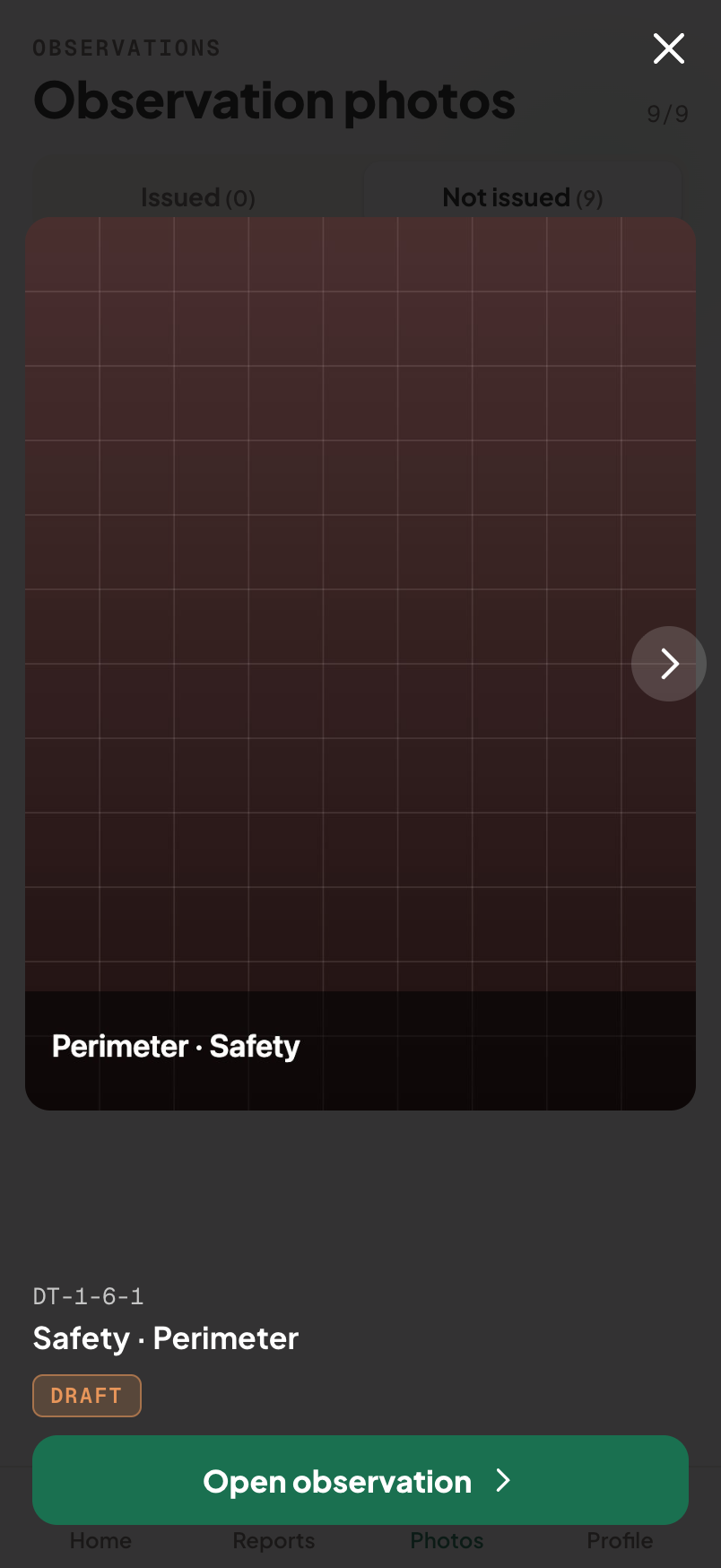
- Lightbox on tap → full photo + its ID + trade · location + Open observation.點擊開燈箱 → 完整照片+其 ID+工種 · 位置+開啟觀察項。
- Issued / Not-issued classification from one shared definition (
domain/notIssued.ts) — excluded-at-issue stays Not issued.已出具/尚未出具分類,來自單一共用定義(domain/notIssued.ts)—— 出具時被排除者仍為尚未出具。
Report — assemble → issue報告 —— 彙整 → 出具
- Review / assemble — pick included observations (Select all / Clear), edit info inline.審查/彙整 —— 挑選要納入的觀察項(全選/清除),就地編輯資訊。
- In-attendance picker — author pinned + add / remove attendees; lists on the PDF.出席選擇器 —— 作者固定+新增/移除出席者;會列於 PDF。
- Trades observed on site today full — an editable summary pre-filled from the included observations' trades; drives the PDF (hides when empty). MVP derives this list from the observations automatically (not editable).今日現場工種 full —— 一份可編輯的摘要,由已納入觀察項的工種預先填入;驅動 PDF(空白時隱藏)。MVP 由觀察項自動推導此清單(不可編輯)。
- Pre-issue check (non-blocking) — a bottom drawer warns how many included observations lack location / trade, with Review / Issue anyway.出具前檢查(不阻擋)—— 底部抽屜提醒有幾個已納入觀察項缺位置/工種,並提供檢視/仍要出具。
- Preview step, then not issued until Confirm — the send sheet is the commit; X / overlay cancels with nothing written.預覽步驟,接著確認前皆未出具 —— 派送表單即為送出點;X/遮罩取消則不寫入任何東西。
- Report codes —
{PREFIX}-{report}; the draft carries the code, not the project name.報告編號 ——{PREFIX}-{report};草稿帶著編號,而非專案名稱。 - Recipient distribution full — send sheet picks recipients (Copy-link + channel tiles, per-person Email / WhatsApp / In-app); Sent shows a Delivered to card. MVP issues straight to Sent.收件派送 full —— 派送表單挑選收件人(複製連結+管道方塊,逐人 Email/WhatsApp/App 內);「已寄送」顯示已送達對象卡片。MVP 出具後直接進入已寄送。
- Server-rendered A4 — a data-bound iframe of the
for-09-cleantemplate + native print, so preview == PDF == mock (page breaks, repeating Observations header,@pagefooter, monogram masthead).伺服器產生的 A4 —— 以for-09-clean樣板做資料綁定的 iframe+原生列印,因此預覽 == PDF == 設計稿(分頁、觀察項標頭重複、@page頁尾、字母標誌抬頭)。 - Save PDF → real file — POSTs the report HTML to
/api/pdf, rendered by headless Chrome (Cloudflare Browser Rendering) → OS share sheet on mobile / download on desktop. Native print is the offline fallback.儲存 PDF → 真實檔案 —— 將報告 HTML POST 到/api/pdf,由無頭 Chrome(Cloudflare Browser Rendering)產生 → 行動裝置走作業系統分享表單/桌機下載。原生列印為離線備援。 - PDF loading overlay — Eagle-wing loader + “Generating PDF…”, blocks a double-tap (free-tier 502) with a cancel ✕ that aborts the fetch.PDF 載入遮罩 —— Eagle 之翼載入動畫+「產生 PDF 中…」,可擋掉重複點擊(免費方案的 502),並有取消 ✕ 中止請求。
- Report map — the pinned floor plan or boxed elevation, rendered only when the observation is marked; “Generated with Eagle AI” footer.報告地圖 —— 已釘選的平面圖或框選的立面圖,僅在觀察項有標記時繪出;頁尾標「Generated with Eagle AI」。
- Info block — PROJECT ID prints the real
project.projectId, and the code field is labelled Code. The weather-card temperature follows the user's °C/°F preference (fmtTemp) — on the assemble screen, the preview, and the exported PDF alike.資訊區塊 —— PROJECT ID 印出真實的project.projectId,法規欄位標示為 Code。天氣卡的溫度會跟隨使用者的 °C/°F 偏好(fmtTemp)—— 彙整畫面、預覽與匯出的 PDF 一致。
Reports & revisions報告與修訂
- Reports tab — project header + latest-report hero (Continue a draft; Open + Create Revision an issued one) + Drafts / Issued lists.報告分頁 —— 專案標頭+最新報告主卡(草稿可繼續;已出具者可開啟+建立修訂)+草稿/已出具清單。
- Each issued number is a version stack (Original + revisions); the list is ordered by issue date.每個已出具編號都是一疊版本堆疊(原始+修訂);清單依出具日期排序。
- Revision — reopen an issued report to edit; keeps its number, bumps
rev, no new walk.修訂 —— 重新開啟已出具報告以編輯;沿用編號、遞增rev、不需重新巡檢。 - Issuing claims that walk's observations (the next walk starts empty) and advances the report number.出具即認領該次巡檢的觀察項(下一次巡檢從空白開始)並推進報告編號。
Notifications通知
- Full-page bell centre — grouped worklist; bell is filled + red dot when actionable, outline when clear (one shared
useNotificationssource).整頁鈴鐺中心 —— 分組待辦清單;有事處理時鈴鐺實心+紅點,清空時為外框(單一共用useNotifications來源)。 - Needs attention — un-issued observations aging > 3 days; Drafts — open draft reports; each row deep-links.需要注意 —— 逾 3 天未出具的觀察項;草稿 —— 開啟中的草稿報告;每一列都深層連結。
Profile & Field Record個人檔案與現場紀錄 full
- Worker profile — identity across practices (an always-present “Independent” letterhead by default); real live stats (projects / observations / issued reports / on-site hours = summed walk-timer).個人檔案 —— 橫跨各事務所的身分(預設有一個永遠存在的「獨立」信箋抬頭);真實的即時統計(專案/觀察項/已出具報告/現場時數=巡檢計時加總)。
- Field Record export — a portable PDF + a published public page (
/p/<token>); masthead = practice letterhead, hero avatar = account photo.現場紀錄匯出 —— 可攜 PDF+已發布公開頁面(/p/<token>);抬頭=事務所信箋抬頭,首圖頭像=帳號照片。 - Branded QR poster — “Save QR” makes a print-ready card: Eagle logo knocked into the QR centre (error-correction H), name, footer.品牌 QR 海報 —— 「儲存 QR」產生可列印卡片:QR 中央嵌入 Eagle 標誌(H 級容錯)、姓名、頁尾。
- Practice roster — people live on the practice (edited there); a project selects a subset + project-only “Other members”; author pinned. Practices with blank names are hidden, and the card itself isn't rendered when the list is empty.事務所名冊 —— 人員隸屬於事務所(在該處編輯);專案挑選其子集+僅該專案的「其他成員」;作者固定。名稱空白的事務所會被隱藏,清單為空時整張卡片不會渲染。
Sync & storage同步與儲存
- Local-first Dexie/IndexedDB; cloud sync email-keyed, auto-pulls on launch, optimistic concurrency (409 on conflict).本地優先 Dexie/IndexedDB;雲端同步以 email 為鍵、啟動時自動拉取、樂觀並行控制(衝突回 409)。
- Content-addressed photos — R2 keyed by
shaalone (portable across keys / devices / import); the key-gated manifest is the access gate.內容定址照片 —— R2 僅以sha為鍵(可跨金鑰/裝置/匯入攜帶);受金鑰保護的清單即為存取關卡。 - Tombstones ride the manifest so deletes don't resurrect on union-merge; “Keep photos on this device” toggle enables cloud-only mode.墓碑標記隨清單傳遞,讓刪除不會在聯集合併時復活;「將照片保留在此裝置」切換可啟用僅雲端模式。
- Pull-to-refresh on every content screen — drag → sync, Eagle-wing spinner + “Pull to refresh” / “Reloading…”.下拉重新整理於每個內容畫面 —— 下拉 → 同步,Eagle 之翼動畫+「下拉以重新整理」/「重新載入中…」。
- Account-unique starter project — the login-seeded project's id is
proj-datong-<accountId>(was the shared constantproj-datong, which let a new account on the same device see other accounts' Not-issued pool, since the local DB is per origin). The account-owner Individual practice is likewiseindependent-<accountId>(was the sharedindependent, which left second accounts with an empty Practices page); the legacy shared records are re-keyed on launch.帳號專屬的起始專案 —— 登入時預置專案的 id 為proj-datong-<accountId>(之前是所有帳號共用的常數proj-datong;由於本地資料庫以來源(origin)共用,同裝置上的新帳號會看到其他帳號的「尚未出具」待處理池)。帳號擁有者的個人事務所同樣改為independent-<accountId>(之前是共用的independent,導致第二個帳號的事務所頁空白);舊的共用紀錄會在啟動時重新編碼。
Login & account登入與帳號
- Passwordless email — 6-digit code via Resend (
/api/auth/email/send+/verify, KV 10-min TTL, one-time); sign-up = sign-in.無密碼 email —— 6 位數驗證碼經 Resend 寄送(/api/auth/email/send+/verify,KV 10 分鐘 TTL,一次性);註冊=登入。 - Email-as-key — the email is the sync key; the same email on another device restores your work.Email 即金鑰 —— email 就是同步金鑰;在另一台裝置以同一 email 即可還原你的作業。
- Face ID re-entry — device-bound WebAuthn credential re-opens the last account without an email round-trip.Face ID 再登入 —— 綁定裝置的 WebAuthn 憑證可重新開啟上一個帳號,免走一次 email 流程。
- First-run onboarding — two steps. Step 1: name + role (Architect / Owner / General Contractor / Engineer / Other). Step 2: project setup — project name + address (required, red
*), project ID + Code (optional); finishing overwrites the login-seeded starter project so a fresh account's first report prints real data. A grey Skip — set up later in Profile link under Get started lands on Home with the default Project A / Sky Harbor Airport, Phoenix. On completion the account's Individual practice is guaranteed to exist with the real name/role. SSO buttons are UI-only placeholders (OAuth can't complete inside an installed PWA). Testing bypass code for internal sign-in.首次引導 —— 兩個步驟。第一步:姓名+角色(建築師/業主/總承包商/工程師/其他)。第二步:專案設定 —— 專案名稱+地址(必填,紅色*)、專案 ID+Code(選填);完成後會覆寫登入時預置的起始專案,讓新帳號的第一份報告印出真實資料。「開始使用」下方的灰色略過 — 之後在「個人檔案」設定連結會以預設的 Project A / Sky Harbor Airport, Phoenix 進入首頁。完成時會確保帳號的個人事務所以真實姓名/角色建立。SSO 按鈕僅為介面佔位(OAuth 無法在已安裝的 PWA 內完成)。內部登入用測試略過代碼。 - Record lock full — a passcode + Face ID gate on sensitive actions (revisions · deletions · project setup · personal info).紀錄鎖 full —— 對敏感動作(修訂 · 刪除 · 專案設定 · 個人資料)以密碼+Face ID 保護。
Platform & UX平台與體驗
- iOS keyboard fix — the shell pins to
window.visualViewportwhile typing (--app-h/--app-top,kb-open), self-adjusting on any iOS version; bottom-nav untouched. In the walk composer the fixed Location · Voice/Text · Log panel drops away while the keyboard is open, so the note stays fully visible (the keyboard overlays the panel instead of pushing it up and clipping the note).iOS 鍵盤修正 —— 輸入時外殼固定到window.visualViewport(--app-h/--app-top、kb-open),可在任何 iOS 版本自我調整;底部導覽不受影響。巡檢編排器中,固定的「位置 · 語音/文字 · 記錄觀察項」面板會在鍵盤打開時退開,讓輸入中的備註完整可見(鍵盤覆蓋面板,而非把它推上去遮住備註)。 - Toasts — global top toast + robust copy helper (
clipboard→execCommandfallback); auto-save fires a debounced “Saved”, header keeps a static “Auto-saved”.Toast 提示 —— 全域頂端提示+穩健的複製輔助(clipboard→execCommand備援);自動儲存以防抖方式跳「已儲存」,標頭保留靜態「已自動儲存」。 - Animated Eagle-wing loader — pre-React splash + React boot (holds one full cycle so it's seen) + inline data-loading states, themed via
currentColor.Eagle 之翼動畫載入 —— React 前的啟動畫面+React 開機(維持一個完整循環讓人看見)+就地資料載入狀態,透過currentColor套色。 - Design-system type scale swept across every size; fonts follow the eagle-component stack — IBM Plex Mono as the mono face (app UI, PDF, Field Record, zone-QR sheets) and Archivo as the display-font token; edition badge (MVP / FULL) is dynamic on Login + Home.設計系統字級已套用到每個尺寸;字體採用 eagle-component 堆疊 —— 等寬字為 IBM Plex Mono(App 介面、PDF、現場紀錄、區域 QR 頁),展示字字元為 Archivo;版本徽章(MVP/FULL)在登入與首頁為動態顯示。
- Home context — live weather (Open-Meteo) on the project card + a real GPS on-site chip (On site now / Not on site / Locating… / GPS off).首頁情境 —— 專案卡片上的即時天氣(Open-Meteo)+真實的 GPS 現場標籤(現在在現場/不在現場/定位中…/GPS 關閉)。
- Theme — light / dark / system; a version tag shows the build.主題 —— 淺色/深色/跟隨系統;版本標籤顯示目前建置。
- Help & About — locale-aware Help & Support + Terms & Privacy pages (
eagleai.tw/gw/…), and the app version.說明與關於 —— 依語系的說明與支援+條款與隱私頁面(eagleai.tw/gw/…),以及 App 版本。 - Every AI feature has a manual fallback — voice → type, AI trade → edit; the AI-suggest indicator is the Eagle wing mark + “AI”.每個 AI 功能都有手動備援 —— 語音 → 打字、AI 工種 → 可編輯;AI 建議標示為 Eagle 之翼標記+「AI」。
- Spec-coverage audit full — an internal screen that checks the build's screens against the spec (dev tool, not a field feature).規格涵蓋稽核 full —— 一個內部畫面,把建置的各畫面對照規格檢查(開發工具,非現場功能)。
Editions版本
- One codebase, build-time
VITE_EDITION+ a per-feature registry (src/edition.ts) → two Workers:field-report(MVP / external) andfield-report-full(Full / internal). Shared KV + R2. Promote a feature = flip its registry line and deploy MVP.單一程式碼、建置期VITE_EDITION+逐功能註冊表(src/edition.ts)→ 兩個 Worker:field-report(MVP/對外)與field-report-full(完整版/對內)。共用 KV + R2。升級功能=改註冊表那一行並部署 MVP。
12 Data model & architecture資料模型與架構
Strict logic ↔ view split so the model is portable to the real backend.嚴格區分邏輯 ↔ 檢視,讓模型可移植到正式後端。
| Layer層 | What lives there內容 |
|---|---|
src/domain/ | Portable model + rules (no JSX): types, report, project, notIssued, statSeries, elevations, weather, seed.可移植模型+規則(無 JSX):types、report、project、notIssued、statSeries、elevations、weather、seed。 |
src/data/ | Dexie DB (accounts · projects · observations · photos · reports · walkdrafts), repo (local-first CRUD + report lifecycle), AuthProvider.Dexie 資料庫(accounts · projects · observations · photos · reports · walkdrafts)、repo(本地優先 CRUD+報告生命週期)、AuthProvider。 |
src/storage/ | sync.ts (cross-device sync + emailToSyncKey())(跨裝置同步+emailToSyncKey()), photos.ts (R2 transport)(R2 傳輸). |
src/edition.ts | Edition flag + feature registry (isOn()).版本旗標+功能註冊表(isOn())。 |
src/lib/ | type.ts (fz()/isz() locale scale — 中文 +2px)(fz()/isz() 語系字級 —— 中文 +2px), usePullToRefresh, useNotifications. |
src/i18n/ | en + zh-TW; every string is a key.en + zh-TW;每個字串都是一個鍵。 |
The seam: a real auth + backend plugs into src/data/repo.ts + src/storage/sync.ts — nothing above changes.介面點:真正的認證+後端接在 src/data/repo.ts + src/storage/sync.ts —— 以上的東西都不用改。
13 Screens & routes畫面與路由
| Screen畫面 | Role角色 | Edition版本 |
|---|---|---|
| Home | Front door — current project, resume walk, Start report, bell門面 —— 目前專案、續行巡檢、開始報告、鈴鐺 | both兩版 |
| Walk / Markup / ImagePrep | Capture: photo, annotate, crop/rotate擷取:照片、標註、裁切/旋轉 | both兩版 |
| ObsDetail | One observation — note, location, links單一觀察項 —— 備註、位置、連結 | both兩版 |
| Review / ReportDraft | Assemble a report彙整報告 | both兩版 |
| ReportView | Preview → Confirm/issue → send sheet預覽 → 確認/出具 → 派送表單 | both兩版 |
| Sent | Issued confirmation + Delivered-to出具確認+已送達對象 | both兩版 |
| Reports | Report list (drafts + issued)報告清單(草稿+已出具) | both兩版 |
| Observations | Photos gallery + Not-issued照片相簿+尚未出具 | full |
| Notifications | Full-page bell worklist整頁鈴鐺待辦清單 | both兩版 |
| Profile / ProfileRecord | Worker profile + Field Record個人檔案+現場紀錄 | full |
| Drawings | Floor plans / elevations / sheets viewer平面圖/立面圖/圖說檢視器 | full |
| Attendance | Who was on site現場有誰 | both兩版 |
| Preferences / CloudSync | Settings, sync/backup設定、同步/備份 | both兩版 |
| Login / Onboarding | Email code + two-step first-run (name + role → project setup)Email 驗證碼+兩步驟首次啟動(姓名+角色 → 專案設定) | both兩版 |
14 The real app — roadmap正式產品 — 路線圖
What the current build stubs or defers, and what the shipping product will do. Each item plugs into an existing seam.目前版本先以佔位或延後處理的部分,以及正式產品將如何實作。每一項都接在既有的介面點上。
| Item項目 | Now現在 | Real app正式產品 |
|---|---|---|
| Auth + backend認證+後端 | Email-as-key (prototype)Email 即金鑰(原型) | Real accounts + database at the repo/sync seam; local-first stays default在 repo/sync 介面點接上真正的帳號+資料庫;本地優先仍為預設 |
| Not-issued lifecycle尚未出具的生命週期 | Not-issued tab + bell aging (>3d)尚未出具分頁+鈴鐺逾期(>3 天) | Aging reminders (3 / 7 days) → delete (no longer a concern) or issue a revision that adds it逾期提醒(3/7 天)→ 刪除(已不需在意)或出具修訂把它補進去 |
| Presence-gated capture現場定位才可擷取 | GPS on-site chip is informationalGPS 現場標籤僅供參考 | Capture only active while on site — off site, Start report is disabled (evidence tied to real presence)只有在現場時才能擷取 —— 不在現場則停用「開始報告」(證據對應真實到場) |
| Floor-plan pin-drop平面圖圖釘 | Per-obs map is a greyed stub逐觀察項地圖為灰化佔位 | Real pin-drop on the plan + data-bound PDF map平面圖上真正的圖釘+資料綁定的 PDF 地圖 |
| AI trade detectionAI 工種辨識 | Trade tag shown; entered by hand顯示工種標籤;以手動輸入 | AI-suggested trades (with manual override — every AI has a fallback)AI 建議工種(可手動覆寫 —— 每個 AI 都有備援) |
| Delivery receipts送達回條 | — | “Owner opened DT-13” once the live link tracks opens當即時連結能追蹤開啟後,顯示「業主已開啟 DT-13」 |
| SSO | Placeholder buttons佔位按鈕 | Real SSO via a native wrapper透過原生外殼的真正 SSO |
| Account deletion帳號刪除 | UI present, action disconnected介面已有,動作尚未接上 | Wired in-app deletion (Apple 5.1.1(v))接上 App 內刪除(Apple 5.1.1(v)) |